Setup Reactional
Add Reactional Manager and Settings
To make integration as smooth as possible, we have prepared a menu item for quick insertion,
which spawns a Reactional Manager GameObject in the scene called Reactional Music.
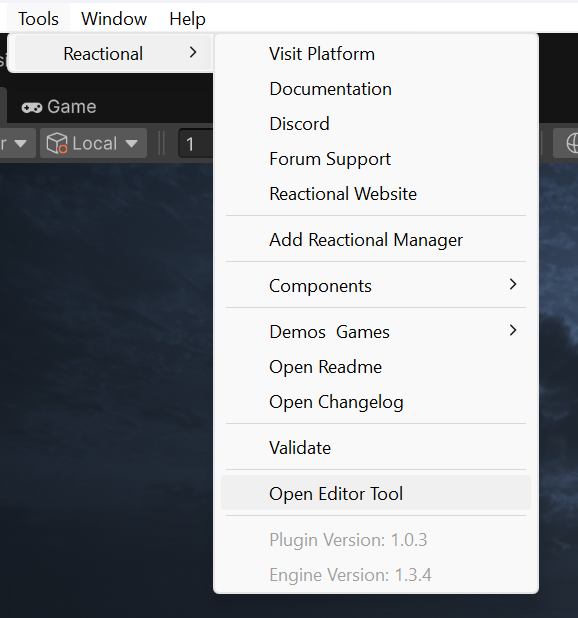
If you need to add it to your scene, you can find it under the Tools -> Reactional -> Add Reactional Manager. menu
in the Unity toolbar along with
Reactional Toolbar
The Reactional Toolbar provides quick access to key Reactional SDK interactions as well as Reactional Links, directly
within the Unreal Editor.
Find it via Tools -> Reactional:
Reactional Manager
The game object contains a child object called Reactional Engine
as well as a few scripts that are needed for Reactional playback.
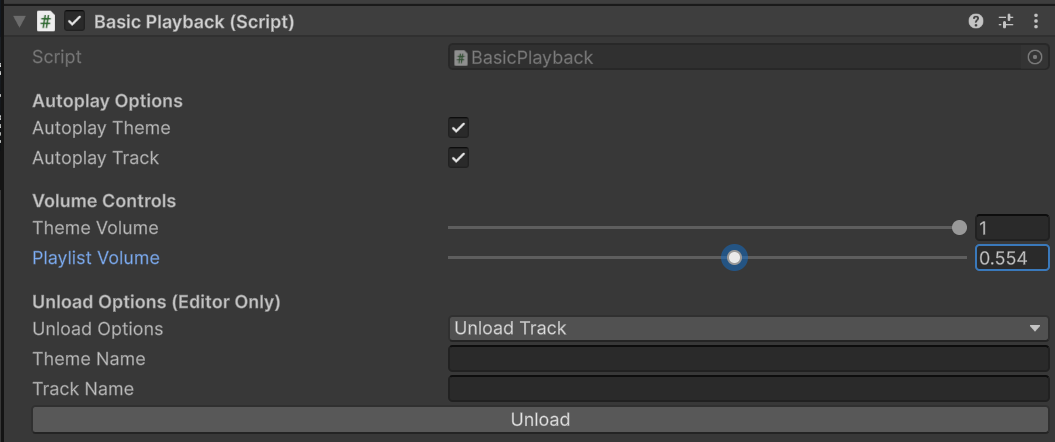
Reactional ManagerSingleton that handles the project setup and settings, which will then be passed to the Reactional Engine on load.Basic PlaybackA barebones script which demonstrates a few API calls, such as loading tracks, assets, and starting playback. You are welcome tocopy and renamethis script to implement your own version of this, best pratice is to move theMyNewPlaybacksctipt on to a spearateGameObjectto make sure it wont disapeare on a plugin update.
Reload Bundle
After you have added Content To Your Project
Your bundles that you have put in the Assets/Reactional/Bundles folder
are ready to get picked up by the Reactional Manager.
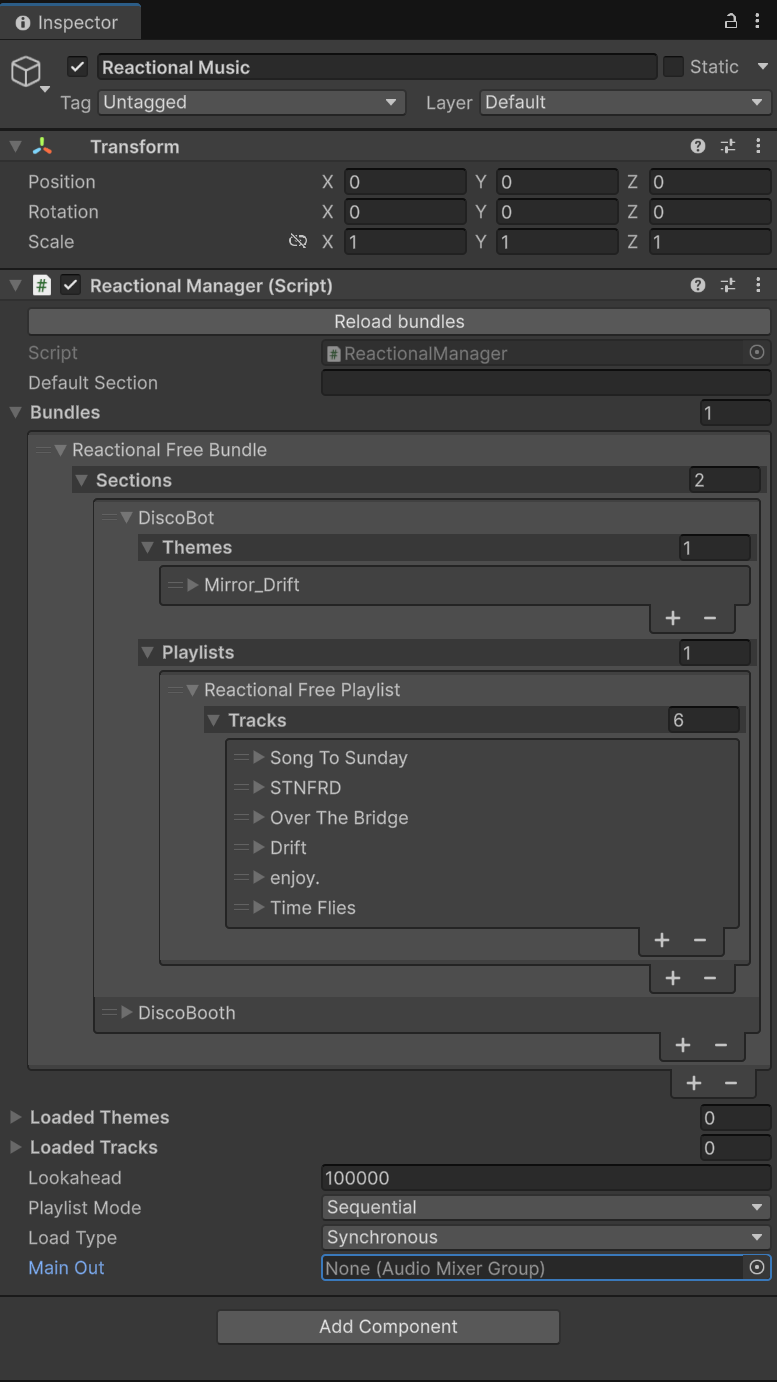
Make sure that you press Reload Bundle. Once that is done,the Reactional Manager will load in the Bundles with
Trackand Themes.
Lookahead
Lookahead in milliseconds, the higher the value the more accurate the timing of the playback will be.
However higer values will also add more latency to the audio output. Defaults to 10.000 ms
Playlist Mode
How the playlist should be played. Sequential, Random, Repeat, Single
Load Type
How the bundles should be loaded: Loads in Background loads the assets in the background. Synchronous loads the
assets on the main thread.
Main Out
Unitys AudioMixerGroup. The audio output will be routed to the selected group enabeling Unitys Mixer functionality.
Reactional Engine Game Object
The Game Object contains a few scripts that are needed for Reactional playback.
The game object contains a child object called Reactional Engine
as well as a few scripts that are needed for Reactional playback.
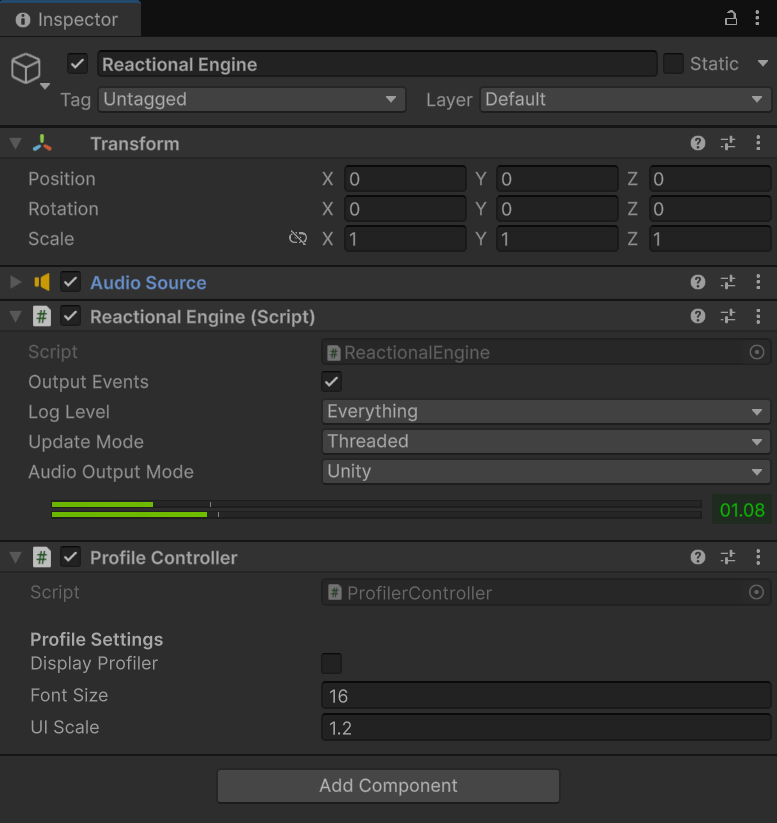
AudioSourceThe above script pushes an audio buffer into the OnAudioFilterRead-function. ending up in this audio sourceReactional EngineA barebones singleton for the actual engine instance.Profile ControllerA script that handles the profile switching.
Output Events
Controls whether the Reactional Engine should output OSC events such as: noteon, noteoff, bar, stinger, and
other music
system events. When enabled (true), these events can be subscribed to via delegates like onNoteOn, onNoteOff,
onBarBeat, and stingerEvent. This is useful for synchronizing game events with the music (e.g., triggering visual
effects on beats or handling note events).
Log Level
Determines which types of log messages from the Reactional system are displayed in the Unity Console. Available options are:
Log- General information messagesWarning- Warning messagesError- Error messagesDisabled- No logging
Multiple levels can be enabled simultaneously. The default setting includes Log, Warning, and Error.
Update Mode
Defines how the Reactional Engine processes audio and updates. Available modes:
Threaded- Runs the engine update on a separate thread at ~60fps, reducing main thread overheadAudio Thread- Updates are processed on Unity's audio thread duringOnAudioFilterReadMain- Updates run on the main Unity thread during theUpdatemethod
The default is Threaded for optimal performance.
Audio Output Mode
Specifies how audio is rendered from the Reactional Engine:
Unity- Audio is rendered through Unity'sOnAudioFilterReadmethod and routed to the AudioSource component ( default)CustomOther modes may be available depending on platform requirements
Display Profiler
Enables the Reactional Profiler system to track performance metrics such as memory management, audio rendering, event
processing, and engine updates. Useful for debugging and optimization during development.
Plugin Assets
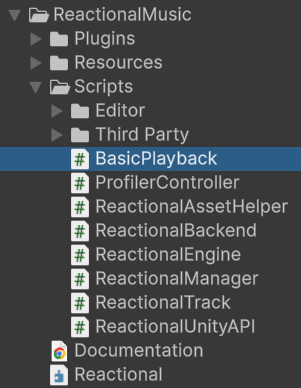
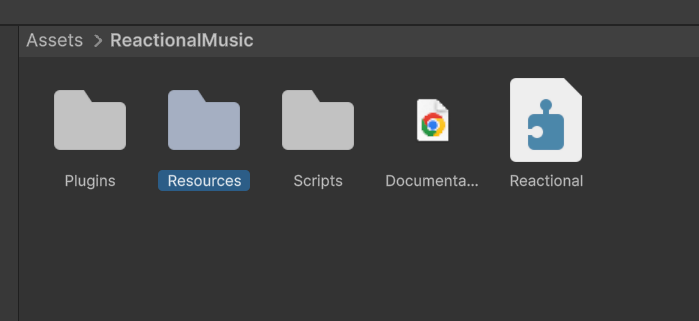
To use Reactional Music assets in your project you usually find them under Tools.
But you can also view them under Project tab, in the path Assets->ReactionalMusic.
Editor Tool
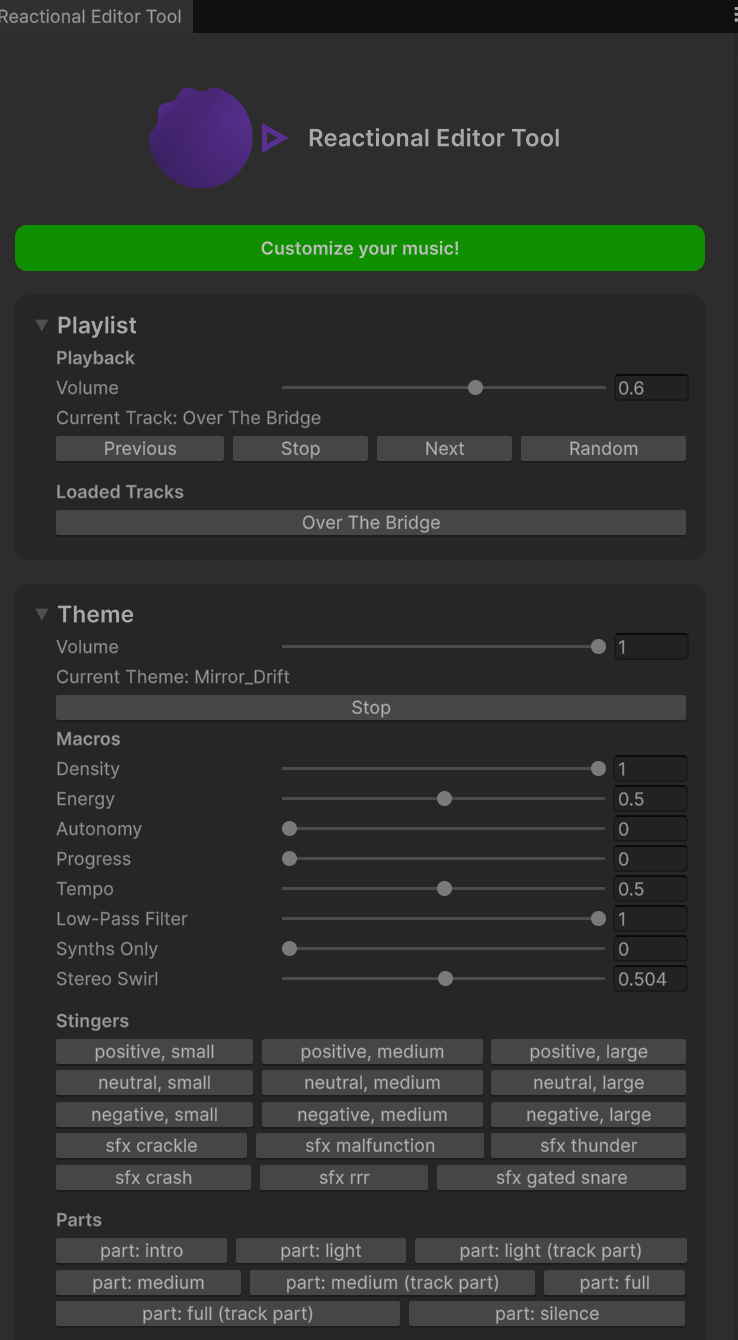
The Editor Tool can run in PIE and is designed to easily test imported Bundles.
Once the widget is open, and you are in playmode you can:
- Start and stop Playback
- Visit the Platform via
Customize Your Musicbutton.- Test all
Macros,Stingers, andParts- Print all
Controllersto the console to retrieve string variable names for all controls in the currently loaded theme
Note: If you have multiple Themes loaded in the Reactional Manager in the Scene.
and want to test a different one, you must drag and drop your #Section and #Theme to be the top object in the Reactional Manager.